Mastering Your Smart Home: How to Set Up a Smart Home Hub
how to set up a smart home hub

Mastering Your Smart Home: How to Set Up a Smart Home Hub

Transform your living space into an intelligent, responsive environment with a central control system.

Start Your Smart Home Journey

Key Takeaways

  • ✓ A smart home hub acts as the central brain, connecting disparate smart devices.
  • ✓ Compatibility is crucial: ensure your hub supports your chosen device protocols (Wi-Fi, Zigbee, Z-Wave, Thread).
  • ✓ Installation typically involves power, network connection, and app-based setup.
  • ✓ Proper setup enables advanced automation, voice control, and remote access.

How It Works

1
Choose Your Hub

Select a hub based on device compatibility, desired features, and ease of use. Consider ecosystems like Apple HomeKit, Google Home, or Amazon Alexa.

2
Physical Installation & Power

Plug your hub into a power source and connect it to your home network, usually via Ethernet or Wi-Fi. Place it centrally for optimal signal.

3
App Setup & Device Pairing

Download the hub's companion app and follow on-screen instructions to set it up. Begin pairing your smart devices one by one, often by putting them in discovery mode.

4
Configure Automation & Routines

Once devices are paired, create custom scenes, schedules, and routines. This allows your devices to interact intelligently without constant manual input.

Understanding the Smart Home Hub Ecosystem
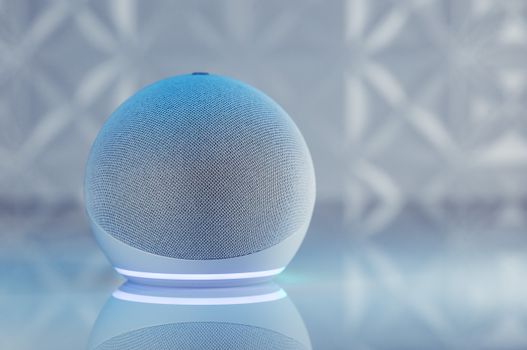
A sleek smart speaker with neon glow on reflective surface, showcasing modern technology. Photo: Jonathan Borba / Pexels
In the burgeoning world of smart home technology, a smart home hub serves as the central nervous system, orchestrating the myriad of devices that make your home intelligent. Without a hub, your smart devices might function independently, controlled by individual apps, leading to a fragmented and often frustrating user experience. Imagine having separate apps for your smart lights, smart thermostat, smart locks, and smart speakers – jumping between them for every adjustment quickly becomes cumbersome. This is precisely where the smart home hub shines, consolidating control into a single interface and enabling devices to communicate and interact with each other seamlessly. At its core, a smart home hub is a device that bridges different communication protocols. While many smart devices connect directly to your home Wi-Fi, others utilize protocols like Zigbee, Z-Wave, or the newer Thread standard, which are designed for lower power consumption and mesh networking. A hub typically supports multiple protocols, allowing you to integrate devices that wouldn't otherwise 'speak' to each other. For instance, a Zigbee-enabled motion sensor can trigger a Z-Wave smart switch connected to your hub, something impossible if they were only operating on their native protocols without a central translator. Choosing the right hub is paramount to a successful smart home setup. Factors to consider include the types of devices you currently own or plan to acquire, your preferred voice assistant ecosystem (Amazon Alexa, Google Assistant, Apple HomeKit), and the level of customization and automation you desire. Some hubs are primarily software-based, relying on existing smart speakers (like an Amazon Echo or Google Nest Hub) to act as a basic controller, while others are dedicated hardware units with more robust processing power and protocol support. Beyond basic control, a hub unlocks the true potential of a smart home through automation. This means setting up 'routines' or 'scenes' where multiple actions occur based on a trigger. For example, a 'Good Morning' routine could gradually turn on your bedroom lights, raise the thermostat, and start your coffee maker at a specific time. An 'Away' routine might lock your doors, arm your security cameras, and turn off all lights. These automations simplify daily life, enhance security, and can even contribute to energy savings by ensuring devices are only active when needed. Understanding these foundational principles is the first critical step in figuring out how to set up a smart home hub effectively, ensuring your smart home journey is smooth and rewarding.

Selecting the Ideal Smart Home Hub for Your Needs
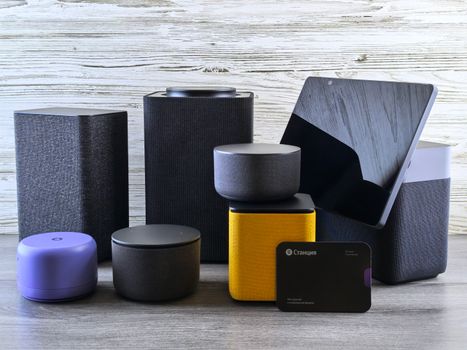
A collection of various smart home speakers and tablet displayed on a wooden surface. Photo: Andrey Matveev / Pexels
The market offers a diverse range of smart home hubs, each with its strengths and weaknesses. Making the right choice involves evaluating several key factors to ensure compatibility, functionality, and future-proofing your smart home. One of the primary considerations is device compatibility. Before committing to a hub, take stock of all your existing smart devices – light bulbs, smart plugs, thermostats, security cameras, door locks – and list their communication protocols (Wi-Fi, Bluetooth, Zigbee, Z-Wave, Thread). Then, research which hubs natively support these protocols. A hub that only supports Wi-Fi might be sufficient if all your devices are Wi-Fi enabled, but if you have a mix, a multi-protocol hub will be essential. Another significant factor is the ecosystem you prefer. Apple HomeKit, Google Home, and Amazon Alexa are the three dominant ecosystems, each offering its own hub-like devices and software integrations. If you're an iPhone user deeply embedded in Apple's ecosystem, a HomeKit-compatible hub (like an Apple HomePod Mini or Apple TV acting as a hub) might be a natural fit, offering tight integration with Siri and the Home app. Similarly, Google Nest Hubs and Amazon Echo devices serve as central controllers for their respective ecosystems, providing voice control and a unified app experience. Some hubs, like Samsung SmartThings or Hubitat, are more platform-agnostic, allowing for broader device compatibility across different brands and protocols, often appealing to users who want maximum flexibility and advanced local automation capabilities. Consider the level of automation and customization you desire. Basic hubs might offer simple routines, while more advanced hubs provide sophisticated scripting options, allowing for complex 'if-then' scenarios and conditional logic. For example, you might want a routine that not only turns on lights when motion is detected but only does so if it's dark outside and no one is home. These intricate automations require a hub with robust rule-building capabilities. User interface and ease of setup are also crucial. Some hubs boast intuitive mobile apps that guide you through every step, while others might have a steeper learning curve, catering to more technically inclined users. Finally, think about future expansion. Will your chosen hub support new and emerging smart home standards like Matter? Matter aims to unify the smart home landscape, making devices from different manufacturers work together seamlessly. Investing in a Matter-ready hub can provide significant peace of mind for future device purchases. Evaluating these aspects meticulously will guide you to the ideal hub that not only meets your current needs but also grows with your evolving smart home aspirations. This careful selection process is a crucial precursor to successfully understanding how to set up a smart home hub and building an efficient, responsive smart home.

Step-by-Step Guide: How to Set Up a Smart Home Hub

Once you've chosen your smart home hub, the setup process generally follows a predictable path, though specifics may vary slightly by brand. This detailed guide will walk you through the essential steps to get your hub up and running, transforming your collection of smart gadgets into a cohesive, intelligent system. **Step 1: Unboxing and Physical Placement.** Carefully unbox your new smart home hub. Most hubs require a power connection and, for optimal performance and initial setup, an Ethernet connection to your router, although many newer hubs support Wi-Fi exclusively. Choose a central location in your home, ideally away from large metal objects or other electronics that could interfere with wireless signals. If your hub uses Zigbee or Z-Wave, a central location helps create a strong mesh network for these low-power devices. Plug it into a power outlet. If it has an Ethernet port and your router is nearby, connect it with an Ethernet cable for the most stable connection during initial setup. **Step 2: Download the Companion App.** Every smart home hub comes with a dedicated mobile application. Search for the app by the hub's brand name in your smartphone's app store (Google Play Store for Android, Apple App Store for iOS). Download and install it. This app will be your primary interface for setting up, controlling, and managing your smart home. **Step 3: Account Creation and Hub Discovery.** Open the app and follow the prompts to create a new user account or log in if you already have one. Many hubs will then automatically try to discover your hub on the local network. If it doesn't, you might need to scan a QR code on the device or manually enter a serial number. Pay attention to any instructions on the screen or in the hub's quick start guide. During this phase, the app will guide you through connecting your hub to your home Wi-Fi network if you're not using an Ethernet connection. You'll typically need to enter your Wi-Fi network name (SSID) and password. **Step 4: Naming Your Hub and Rooms.** Once your hub is connected, the app will usually ask you to give your hub a name (e.g., 'Main Hub,' 'Home Control'). This is especially useful if you plan to have multiple hubs in different locations. Next, you'll often be prompted to set up 'rooms' or 'zones' within your home. This is a crucial organizational step. Create logical areas like 'Living Room,' 'Kitchen,' 'Bedroom,' 'Hallway,' etc. This structure will make it much easier to manage and control your smart devices later. **Step 5: Pairing Your Smart Devices.** This is where your smart home truly begins to come alive. In the hub's app, look for an 'Add Device,' 'Pair Device,' or 'Discover Devices' option. The process for pairing each device will vary depending on its type and protocol. * **Wi-Fi Devices:** These usually require you to put them into a pairing mode (often by power cycling or holding a button), then select your home Wi-Fi network and enter the password within the hub's app or the device's native app, which then links to the hub. * **Zigbee/Z-Wave/Thread Devices:** For these, you'll typically initiate a 'discovery' or 'inclusion' mode on your hub, then put the individual device into its pairing mode (again, often by power cycling, holding a button, or using a pinhole reset). The hub will then detect and add the device. As you add each device, assign it to the appropriate room you created earlier. Give each device a descriptive and easily recognizable name (e.g., 'Living Room Lamp 1,' 'Kitchen Thermostat,' 'Front Door Lock'). This is vital for clear voice commands and efficient management. **Step 6: Creating Automations, Scenes, and Routines.** With your devices paired and organized, you can now unleash the power of automation. Explore the 'Automations,' 'Routines,' 'Scenes,' or 'Rules' section of your hub's app. Start with simple automations, like scheduling your lights to turn on at sunset and off at sunrise. Progress to more complex ones: * **Motion-triggered lights:** Turn on hallway lights when motion is detected, but only between certain hours. * **Door/window sensor triggers:** Send an alert if a window is opened when you're away. * **Thermostat adjustments:** Set your thermostat to a specific temperature when you leave home and adjust it before you return. * **Voice commands:** Link your hub to a voice assistant (Alexa, Google Assistant, Siri) and test commands like 'Turn off all lights' or 'Set living room temperature to 72 degrees.' Test each automation thoroughly to ensure it functions as expected. Don't be afraid to experiment and refine your routines over time. This iterative process is key to personalizing your smart home experience. Understanding how to set up a smart home hub is not just about connecting devices, but about creating an intuitive and responsive environment tailored to your lifestyle.

Troubleshooting and Optimizing Your Smart Home Hub Performance

Even with careful planning, you might encounter challenges when setting up and maintaining your smart home hub. Knowing common troubleshooting steps and optimization techniques can save you time and frustration. One of the most frequent issues is device connectivity. If a device isn't pairing or frequently drops offline, first check its power source and ensure it's within range of the hub or a mesh network extender. For Wi-Fi devices, verify that your Wi-Fi network is stable and that the device is connected to the correct band (2.4GHz vs. 5GHz), as many smart devices only support 2.4GHz. Rebooting both the problematic device and your smart home hub can often resolve transient connection issues. Signal interference is another common culprit. Your Wi-Fi router, microwave ovens, cordless phones, and even neighboring Wi-Fi networks can all interfere with your hub's wireless signals (Zigbee, Z-Wave, Wi-Fi). Try repositioning your hub to a more central, unobstructed location, away from other electronics. If you have a large home or thick walls, consider adding Zigbee or Z-Wave repeaters (often smart plugs or light switches) to extend the mesh network and improve signal strength to distant devices. Automation glitches can be particularly perplexing. If a routine isn't firing as expected, meticulously review the conditions and actions you've set up in the app. Check for typos in device names, incorrect time settings, or conflicting routines. For example, if you have two routines that try to set the same light to different states simultaneously, they might conflict. Also, ensure all involved devices are online and responsive. Sometimes, a simple software update for the hub or the device's firmware can resolve unexpected behavior. Regularly check for and install updates for both your hub and your smart devices, as these often include bug fixes and performance improvements. Security is paramount in a smart home. Always use strong, unique passwords for your hub's account and your Wi-Fi network. Enable two-factor authentication (2FA) if your hub's platform supports it. Be cautious about granting third-party apps or services extensive permissions, only giving access to what is strictly necessary for their function. Regularly review the list of connected services and revoke access for any you no longer use. Finally, optimize your hub's performance by minimizing unnecessary network traffic. If you have many Wi-Fi devices, ensure your router is capable of handling the load. Consider a dedicated guest Wi-Fi network for smart devices if your router supports it, isolating them from your main network. Regularly audit your paired devices and remove any that are no longer in use to keep your system clean and efficient. By proactively addressing these common issues and implementing best practices, you can ensure your smart home hub operates smoothly and reliably, providing the seamless automation you envisioned. This continuous process of refinement is key to mastering how to set up a smart home hub for long-term success.

Comparison

FeatureSamsung SmartThingsApple HomeKit (via Hub)Google Nest Hub (Max)Hubitat Elevation
Protocols SupportedZigbee, Z-Wave, Wi-Fi, Thread (newer hubs)Wi-Fi, Bluetooth, ThreadWi-Fi, Bluetooth, ThreadZigbee, Z-Wave, Wi-Fi
Voice AssistantAlexa, Google AssistantSiriGoogle AssistantAlexa, Google Assistant
Local AutomationPartial (some automations)Yes (via HomePod/Apple TV)No (cloud-reliant)Full (primary focus)
App EcosystemBroad, many integrationsApple Home app, limited 3rd partyGoogle Home app, integrationsRobust, community-driven
Setup ComplexityModerateEasyEasyAdvanced (for full power)
Privacy FocusCloud-dependentHighModerateHigh (local control)
Cost (Hub Only)$80-$120$99-$179 (HomePod/Apple TV)$229$129-$159

What Readers Say

"Learning how to set up a smart home hub completely transformed my daily routine. My lights now turn on automatically when I arrive home, and my thermostat adjusts before I even walk in the door. It's incredibly convenient and genuinely feels futuristic."

Sarah J. · Austin, TX

"I was overwhelmed by all the different smart devices, but this guide on how to set up a smart home hub made it so clear. Now everything works together seamlessly, and I can control it all from one app. My smart home finally feels 'smart'."

Mark D. · Seattle, WA

"Following the steps here, I successfully integrated all my Zigbee and Wi-Fi devices with my new hub. My energy bill went down thanks to smarter scheduling, and the peace of mind from unified security alerts is priceless. Highly recommend this approach."

Emily R. · Miami, FL

"The setup process for my Hubitat was a bit more involved than I expected, but this article helped clarify the nuances. Once configured, the local automation is incredibly powerful. It's not for the faint of heart, but the results are worth it for advanced users."

David L. · Denver, CO

"As a busy mom, automating chores is a lifesaver. This guide showed me how to set up a smart home hub to manage everything from my baby monitor to the robot vacuum. It truly frees up mental space and makes our home more efficient."

Jessica M. · Boston, MA

Frequently Asked Questions

What is the primary benefit of knowing how to set up a smart home hub?

The primary benefit is achieving true home automation and unified control. Instead of managing individual smart devices with separate apps, a hub centralizes everything, allowing devices to communicate with each other and enabling complex, automated routines based on triggers like time, motion, or presence.

Is setting up a smart home hub difficult for beginners?

While it requires a few more steps than plugging in a single smart bulb, modern smart home hubs are designed with user-friendly apps and clear instructions. Many provide guided setup processes. With a little patience and by following a good guide, beginners can successfully set up a smart home hub.

How do I connect my existing smart devices to a new hub?

Most hubs have an 'Add Device' or 'Pair Device' function within their app. You'll typically put your smart device into a 'pairing mode' (often by power cycling it or holding a button) and then initiate a discovery scan on your hub. The hub will then detect and allow you to add the device to its ecosystem.

What is the typical cost associated with setting up a smart home hub?

The cost of a smart home hub itself can range from $50 for basic models that leverage existing smart speakers to $200+ for advanced, multi-protocol hubs. Beyond the hub, the cost depends entirely on how many smart devices you add. Many popular smart home devices are relatively affordable, making a smart home accessible at various budget points.

How does a dedicated smart home hub compare to using a smart speaker as a hub?

A dedicated smart home hub (like SmartThings or Hubitat) generally offers broader compatibility with various communication protocols (Zigbee, Z-Wave), more robust local processing for faster and more reliable automations, and greater customization. Smart speakers (like Amazon Echo or Google Nest Hub) can act as basic hubs for Wi-Fi and sometimes Thread devices, providing voice control and simpler routines, but often lack the deeper integration and local control of a dedicated hub.

Who should consider learning how to set up a smart home hub?

Anyone with multiple smart devices from different brands or using various communication protocols will benefit from a smart home hub. It's also ideal for those seeking advanced automation, local control for better reliability and privacy, or a unified interface to simplify their smart home management.

Are there any privacy or security risks when setting up a smart home hub?

As with any connected device, privacy and security are considerations. Choose hubs from reputable manufacturers, use strong unique passwords, enable two-factor authentication, and keep firmware updated. Be mindful of the data collected by cloud-dependent hubs and review privacy policies. Local control hubs can offer enhanced privacy.

What future trends should I consider when learning how to set up a smart home hub?

The most significant trend is the adoption of the Matter standard. Matter aims to simplify device compatibility across ecosystems. Choosing a Matter-ready hub or one that plans to support it will future-proof your smart home, ensuring broader device choice and easier integration moving forward.

Ready to take control of your connected home? By understanding how to set up a smart home hub, you can unlock unparalleled convenience, efficiency, and security. Start building your truly intelligent living space today.

Topics: how to set up a smart home hubsmart home automationsmart home deviceshome automation hubsmart home ecosystem
Leo List
Brampton weed
Adultwork