How to Build a Gaming PC: Your Ultimate DIY Guide
how to build a gaming PC

How to Build a Gaming PC: Your Ultimate DIY Guide

Unlock unparalleled gaming performance and satisfaction by assembling your very own high-powered custom gaming PC.

Start Building Today

Key Takeaways

  • ✓ Building your own gaming PC can save you money and provide better performance than pre-builts.
  • ✓ Understanding component compatibility is crucial for a successful build.
  • ✓ The process is modular and often compared to adult LEGOs, making it accessible.
  • ✓ Proper cable management is essential for airflow and aesthetics.

How It Works

1
Plan Your Build & Gather Components

Research and select compatible components based on your budget and desired performance. Ensure you have all necessary parts before starting assembly.

2
Assemble Core Components

Install the CPU, RAM, and CPU cooler onto the motherboard. This initial assembly is often done outside the PC case for easier access.

3
Mount Components in Case

Secure the motherboard, power supply, storage drives, and graphics card inside the PC case. Pay attention to proper seating and screw placement.

4
Connect Wiring & Test

Connect all power cables, data cables, and front panel connectors. Perform an initial boot test to ensure all components are recognized before final cable management.

Understanding Your Gaming PC Components

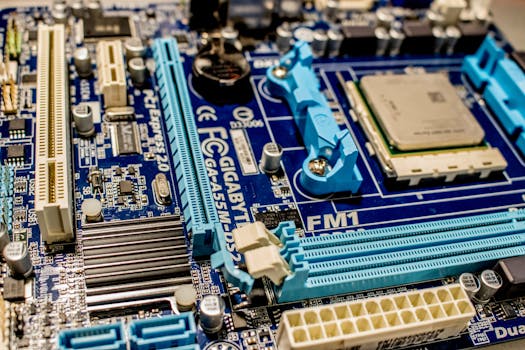
Embarking on the journey of how to build a gaming PC begins with a fundamental understanding of its constituent parts. Think of your gaming PC as a high-performance vehicle, where each component plays a critical role in its overall speed, efficiency, and power. The central processing unit (CPU) is the 'brain' of your computer, responsible for executing instructions and processing data. For gaming, you'll want a modern multi-core processor from Intel (i5, i7, i9) or AMD (Ryzen 5, 7, 9) that balances core count with clock speed. While a higher core count is beneficial for multitasking and future-proofing, a strong single-core performance is often more crucial for current gaming titles. Choosing the right CPU is paramount, as it dictates the motherboard socket type you'll need. Next, we have the graphics processing unit (GPU), often referred to as the graphics card or video card. This is arguably the single most important component for gaming performance. The GPU renders the images you see on your screen, and a powerful one is essential for high frame rates, crisp resolutions, and visually stunning graphics. NVIDIA's GeForce RTX series and AMD's Radeon RX series are the dominant players here. Your choice will largely depend on your budget and your target resolution and refresh rate (e.g., 1080p 144Hz, 1440p 60Hz, 4K 120Hz). Don't skimp here if gaming is your primary objective. The motherboard acts as the nervous system, connecting all the components and allowing them to communicate. It must be compatible with your chosen CPU (socket type) and RAM (DDR4 or DDR5). Look for features like sufficient PCIe slots for your GPU and other expansion cards, M.2 slots for fast NVMe SSDs, and ample USB ports. The chipset on the motherboard also plays a role in features and overclocking capabilities. Random Access Memory (RAM) is your system's short-term memory, storing data that the CPU needs to access quickly. For gaming, 16GB is generally the sweet spot, with 32GB becoming increasingly popular for heavy multitasking or future-proofing. Speed (measured in MHz) and latency (CAS Latency) are important factors, with faster RAM contributing to smoother gameplay. Storage is where your operating system, games, and other files reside. Solid State Drives (SSDs), particularly NVMe M.2 SSDs, offer significantly faster load times compared to traditional Hard Disk Drives (HDDs). While HDDs still offer a lower cost per gigabyte for mass storage, an NVMe SSD for your operating system and primary games is a must for a modern gaming PC. The power supply unit (PSU) delivers electricity to all your components. Its wattage must be sufficient to power your entire system, with some headroom for future upgrades and efficiency. Always opt for a reputable brand with an 80 Plus certification (Bronze, Gold, Platinum, Titanium) for better efficiency and reliability. Finally, the PC case houses all these components, providing airflow, protection, and aesthetics. Consider its size (ATX, Micro-ATX, Mini-ITX), cooling potential, and cable management features when making your selection. Understanding this intricate dance between components is the first crucial step in mastering how to build a gaming PC.

Step-by-Step Assembly: Bringing Your Rig to Life

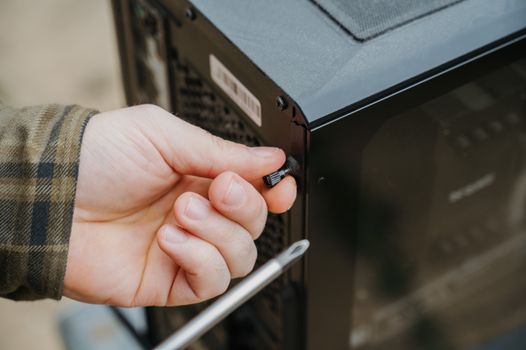
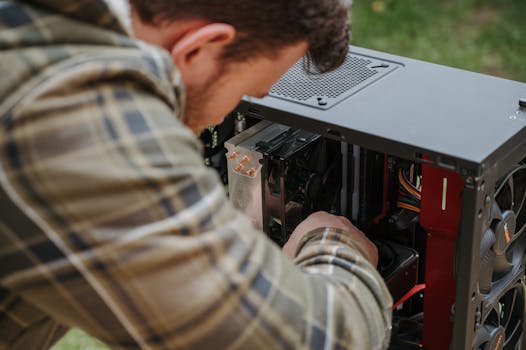
With your components laid out and ready, the exciting part of how to build a gaming PC begins: assembly. Before you start, ensure you have a clean, static-free workspace. An anti-static wrist strap is highly recommended to protect sensitive electronics. Begin by preparing your motherboard. Carefully unbox it and place it on its anti-static bag or the motherboard box itself. This provides a safe, non-conductive surface. The first component to install is the CPU. Open the CPU socket lever on the motherboard, align the CPU's golden triangle or notches with the corresponding marks on the socket, and gently drop it into place. Do not force it. Once seated, close the lever to secure it. Next, install your RAM modules. Open the clips on the RAM slots, align the notch on the RAM stick with the notch in the slot, and press firmly on both ends until the clips snap into place. Ensure they are fully seated. Now, it's time for the CPU cooler. If you're using the stock cooler that came with your CPU, it often has pre-applied thermal paste. For aftermarket coolers, you'll need to apply a small pea-sized dot of thermal paste to the center of the CPU's integrated heat spreader (IHS) before mounting the cooler. Follow your cooler's specific instructions for installation, as methods vary between air coolers and all-in-one (AIO) liquid coolers. This step is crucial for preventing your CPU from overheating. After the CPU and cooler are installed, you can mount any M.2 NVMe SSDs directly onto the motherboard. These typically slot into a dedicated M.2 slot and are secured with a small screw. Next, prepare your PC case. Install the motherboard standoffs if they aren't pre-installed. These small screws lift the motherboard off the case, preventing short circuits. Carefully lower your assembled motherboard into the case, aligning the screw holes with the standoffs. Secure it with the appropriate screws. Now, install your power supply unit (PSU) into its designated bay, usually at the bottom or top rear of the case, and secure it with screws. If you have any traditional 2.5-inch SSDs or 3.5-inch HDDs, install them into their respective drive bays. The graphics card (GPU) is usually the last major component to install. Open the PCIe slot latch on the motherboard, align the GPU with the top PCIe x16 slot (usually the reinforced one), and press it firmly into place until the latch clicks. Secure it to the case with screws. Finally, the most intricate part: cable management. Connect the large 24-pin ATX power cable to the motherboard, the 8-pin (or 4+4-pin) CPU power cable, and PCIe power cables to your GPU. Connect SATA power and data cables to your storage drives. Don't forget the front panel connectors (power switch, reset switch, USB, audio) – consult your motherboard manual for their exact locations. Route cables neatly behind the motherboard tray for optimal airflow and aesthetics. Once everything is connected, double-check all connections before attempting the first boot. This meticulous process ensures your gaming PC is built correctly and efficiently.

Software Installation and Optimization for Peak Performance

Once your hardware is meticulously assembled, the next critical phase in how to build a gaming PC involves bringing it to life with software. This stage is just as vital as the hardware assembly, as even the most powerful components won't perform optimally without the right software and configurations. The very first step is to install your operating system (OS). For gaming, Windows 10 or Windows 11 is the standard choice due to its broad game compatibility and driver support. You'll need a USB flash drive with a bootable Windows installation media, which you can create using Microsoft's Media Creation Tool on another computer. Insert the USB drive, power on your new PC, and enter the BIOS/UEFI (usually by pressing DEL or F2 during startup) to set the USB drive as the primary boot device. Follow the on-screen prompts to install Windows onto your primary SSD. Optimizing Windows for gaming is crucial for performance. After Windows is installed, your system will likely be running on generic drivers. This is where the real optimization begins. First, install your motherboard drivers. These can usually be found on the motherboard manufacturer's website. They include drivers for chipsets, network controllers (Ethernet and Wi-Fi), audio, and USB ports. Next, and most importantly for gaming, install the latest graphics card drivers. Visit NVIDIA's or AMD's website, download the appropriate driver package for your specific GPU, and perform a clean installation. Keeping your GPU drivers updated regularly is paramount for performance improvements and bug fixes in new game releases. Don't forget to install drivers for any other peripherals, such as your monitor, keyboard, and mouse, if they require specific software. Once all drivers are installed, it's time for Windows updates. Ensure your system is fully up to date to patch security vulnerabilities and improve stability. After updates, you can begin installing your favorite games and essential gaming platforms like Steam, Epic Games Store, GOG, or Battle.net. Beyond basic installations, several optimization steps can further enhance your gaming experience. Adjust your monitor's refresh rate in Windows display settings to match its maximum capability (e.g., 144Hz, 240Hz). Enable XMP (Extreme Memory Profile) or DOCP (Direct Overclock Profile) in your BIOS/UEFI to ensure your RAM runs at its advertised speed, as it often defaults to a lower speed. This can significantly impact CPU-bound game performance. Consider tweaking in-game settings for the best balance of visual fidelity and frame rate. Use tools like MSI Afterburner (for GPU monitoring and overclocking) or HWMonitor (for general system monitoring) to keep an eye on temperatures and performance. Disable unnecessary background applications that consume system resources. For competitive gaming, ensure your power plan in Windows is set to 'High Performance.' While the initial setup can be time-consuming, these software installations and optimizations are fundamental to unlocking the full potential of your custom-built gaming PC, ensuring a smooth, responsive, and immersive gaming experience.

Essential Tips and Common Pitfalls When Building Your PC

Building a gaming PC is a rewarding experience, but it comes with its share of nuances and potential pitfalls. Being aware of these can save you time, frustration, and even money. Here are some essential tips and common mistakes to avoid: * **Tip: Research Compatibility Thoroughly:** Before purchasing any component, use online tools like PCPartPicker.com to check for compatibility issues between your CPU, motherboard, RAM, and GPU. This prevents costly returns and ensures your system will work together harmoniously. * **Mistake: Forgetting Thermal Paste:** If your CPU cooler doesn't come with pre-applied thermal paste (most aftermarket coolers don't), you *must* apply a small amount before mounting the cooler. Without it, your CPU will quickly overheat and shut down. Always double-check this detail. * **Tip: Cable Management is Key:** While it might seem purely aesthetic, good cable management significantly improves airflow within your case, leading to better cooling and system stability. Take your time to route cables neatly behind the motherboard tray. * **Mistake: Not Grounding Yourself:** Static electricity can severely damage sensitive components like your CPU, RAM, and GPU. Always use an anti-static wrist strap or regularly touch a grounded metal object (like your PC case's bare metal) to discharge static. * **Tip: Read Your Motherboard Manual:** This manual is your best friend during assembly. It provides detailed diagrams for front panel connectors, RAM slot configurations, M.2 slot locations, and troubleshooting codes. Don't just skim it; refer to it often. * **Mistake: Forcing Components:** If a component doesn't fit easily, stop and re-evaluate. Forcing parts can bend pins (especially on CPUs) or damage slots, rendering expensive components useless. Gentle pressure is usually all that's needed when properly aligned. * **Tip: Test Before Finalizing:** After installing the CPU, cooler, RAM, and GPU, but before tidying up all cables, do a 'breadboard' test. Connect the PSU, a monitor, keyboard, and mouse, and try to boot into the BIOS. This helps identify major issues before everything is fully installed in the case. * **Mistake: Overlooking PSU Wattage and Quality:** A cheap, underpowered, or unreliable PSU can jeopardize your entire system. Always choose a reputable brand with sufficient wattage and an 80 Plus certification (Gold or higher is recommended) to ensure stable power delivery. * **Tip: Install Drivers in the Correct Order:** After OS installation, prioritize motherboard chipset drivers, then graphics card drivers, and then other peripheral drivers. This ensures foundational system functions are established before specialized hardware. * **Mistake: Neglecting BIOS/UEFI Updates:** Sometimes, a motherboard's BIOS/UEFI might need an update to support newer CPUs or improve stability. Check your motherboard manufacturer's website for the latest versions and instructions, but proceed with caution as a failed update can brick your board. By keeping these tips in mind and avoiding common pitfalls, your journey of how to build a gaming PC will be much smoother and more successful, resulting in a robust and high-performing machine.

Comparison

FeatureBest Option (High-End)Alternative 1 (Mid-Range)Alternative 2 (Budget)
CPUIntel Core i9-14900K / AMD Ryzen 9 7950X3DIntel Core i7-14700K / AMD Ryzen 7 7800X3DIntel Core i5-13600K / AMD Ryzen 5 7600X
GPUNVIDIA RTX 4090 / AMD RX 7900 XTXNVIDIA RTX 4070 Ti SUPER / AMD RX 7800 XTNVIDIA RTX 4060 Ti / AMD RX 6700 XT
RAM32GB DDR5-6000+ CL3032GB DDR4-3600 CL16 / DDR5-6000 CL3616GB DDR4-3200 CL16
Storage2TB NVMe PCIe Gen4 SSD1TB NVMe PCIe Gen4 SSD500GB NVMe PCIe Gen3 SSD + 1TB HDD
PSU850W+ 80+ Gold/Platinum750W 80+ Gold650W 80+ Bronze
Cooling360mm AIO Liquid Cooler240mm AIO / High-End Air CoolerMid-Range Air Cooler
Resolution Target4K Ultra Settings1440p High Settings1080p High Settings

What Readers Say

"This guide made building my first gaming PC feel incredibly approachable. I was intimidated, but the detailed component breakdown and step-by-step instructions gave me the confidence to succeed. My new rig runs Cyberpunk 2077 flawlessly!"

Alex P. · Austin, TX

"I've always wanted a custom PC, and this article was the perfect resource. It covered everything from choosing parts to software optimization. My build was smooth, and I'm now enjoying games at max settings without breaking the bank on a pre-built."

Sarah L. · Seattle, WA

"Following this guide, I managed to assemble my dream gaming PC in an afternoon. The performance difference from my old console is night and day. Loading times are instant, and graphics are stunning. Highly recommend for anyone looking to DIY."

Mike R. · Orlando, FL

"The guide was mostly excellent, especially the tips section which saved me from a few potential mistakes. I wish there were a bit more detail on specific cable management techniques, but overall, it was an invaluable resource for my first build."

Jessica M. · Denver, CO

"As a casual gamer transitioning to PC, this article demystified the entire process. I appreciated the clear explanations of each component's role. My son and I built it together, and it was a fantastic learning experience that resulted in a powerful machine."

David K. · Boston, MA

Frequently Asked Questions

Is it really cheaper to build a gaming PC than to buy a pre-built one?

Generally, yes. Building your own gaming PC often allows you to get more powerful components for the same price, or the same performance for less money, compared to a pre-built system. This is because you avoid the labor costs and profit margins of a system integrator. Additionally, you have full control over component selection, ensuring no compromises on quality or performance.

How difficult is it to build a gaming PC for a beginner?

While it might seem daunting, building a gaming PC is often compared to assembling high-tech LEGOs. Most components are designed to fit together only one way, making it quite intuitive. With a good guide, patience, and attention to detail, even a complete beginner can successfully build a gaming PC. The most crucial part is careful research and following instructions.

What tools do I need to build a gaming PC?

You'll primarily need a Phillips head screwdriver (magnetic tip is a bonus), an anti-static wrist strap (highly recommended to prevent static damage), and possibly some zip ties or Velcro straps for cable management. A headlamp or flashlight can also be helpful for seeing into tight spaces within the case.

How much does it cost to build a decent gaming PC?

The cost can vary widely depending on your performance goals. A budget-friendly gaming PC capable of 1080p gaming might start around $700-$900. A mid-range system for 1440p gaming could be $1200-$1800, while a high-end, 4K-ready rig can easily exceed $2000-$3000+. It's essential to set a budget and prioritize components based on your needs.

Should I choose Intel or AMD for my CPU and GPU?

Both Intel and AMD offer excellent CPUs and GPUs that are highly competitive. For CPUs, Intel often has a slight edge in raw single-core gaming performance, while AMD's Ryzen processors excel in multi-core tasks and often offer better value. For GPUs, NVIDIA's GeForce cards are known for their Ray Tracing performance and DLSS technology, while AMD's Radeon cards often provide strong rasterization performance for their price point. The best choice depends on your budget, specific game preferences, and desired features.

Who should consider building their own gaming PC?

Anyone looking for maximum performance for their money, who enjoys a hands-on project, or who wants complete control over their system's components and aesthetics should consider building their own gaming PC. It's also ideal for those who plan to upgrade components incrementally in the future, as it offers greater flexibility than most pre-built systems.

What are the risks involved in building a PC?

The primary risks involve damaging components through static electricity, improper installation (e.g., bending CPU pins, forcing RAM), or using incompatible parts. However, these risks are significantly mitigated by careful planning, following instructions, using an anti-static strap, and being gentle. Most modern components are quite robust if handled correctly.

What are the future trends in PC building that I should be aware of?

Future trends include the continued dominance of NVMe PCIe Gen5 SSDs for even faster storage, increasing adoption of DDR5 RAM, more efficient power delivery standards, and advancements in AI-powered upscaling technologies (like DLSS and FSR) for GPUs. Modularity and sustainability in component design are also growing areas of focus, potentially leading to easier upgrades and repairs.

Ready to take control of your gaming experience? Use this comprehensive guide on how to build a gaming PC to assemble a custom rig that perfectly matches your performance needs and budget. Dive in, learn, and unleash the power of your own creation!

Topics: how to build a gaming PCcustom gaming computerPC building guideDIY gaming riggaming PC components
Leo List
Brampton weed
Adultwork EstrelaBet Vai de Bet R7 Bet Betão Galera Bet Rainbet Bet9ja Shop SportyBet BetKing Sisal Loto Foot Hollywoodbets YesPlay Odibets RushBet Jugabet BetWarrior BetCity MSport betPawa Fortebet